
All users have the opportunity to rate products on a 1 to 5 Star scale (5 being Best and 1 being Worst) and write reviews with more detailed feedback. All ratings and reviews default to anonymous in public view of the catalog, but are attributed internally, within your organization, so people know who to ask if they have further questions. Ratings and Reviews are HIGHLY encouraged because there are no other places to give manufacturers feedback directly. Comments can address product attributes or certifications (like the desire for a product to have a 3rd party certification to comply with client requirements) or performance, installation, aesthetics, durability – or anything else. Manufacturers always have the ability to respond from their dashboard.
Please observe community guidelines and be as constructive as possible to help others who rely on reviews. Reviews that are not respectful or constructive will be taken down.
Our next improvement will include showing ratings in comparison view of products in the catalog and the ability to sort ratings and reviews in three ways: 1.) ALL user’s reviews, 2.) My org. reviews only and 3.) Expert reviewers.
First, you’ll see instructions for leaving a review and then below that you’ll see how Manufacturers can respond to reviews.
From within the Catalog
You can get to Ratings & Reviews in two places, either directly from within the Catalog OR from within your Material List (this is where you add products from the catalog to a Master or Project Material List). When an owner or project team member clicks on a Catalog item, they will also see “Organization” specific info automatically. Don’t worry – no one outside of your organization sees this info!
First – from within the Catalog:
1.) Search and filter then click on the product you want to review.
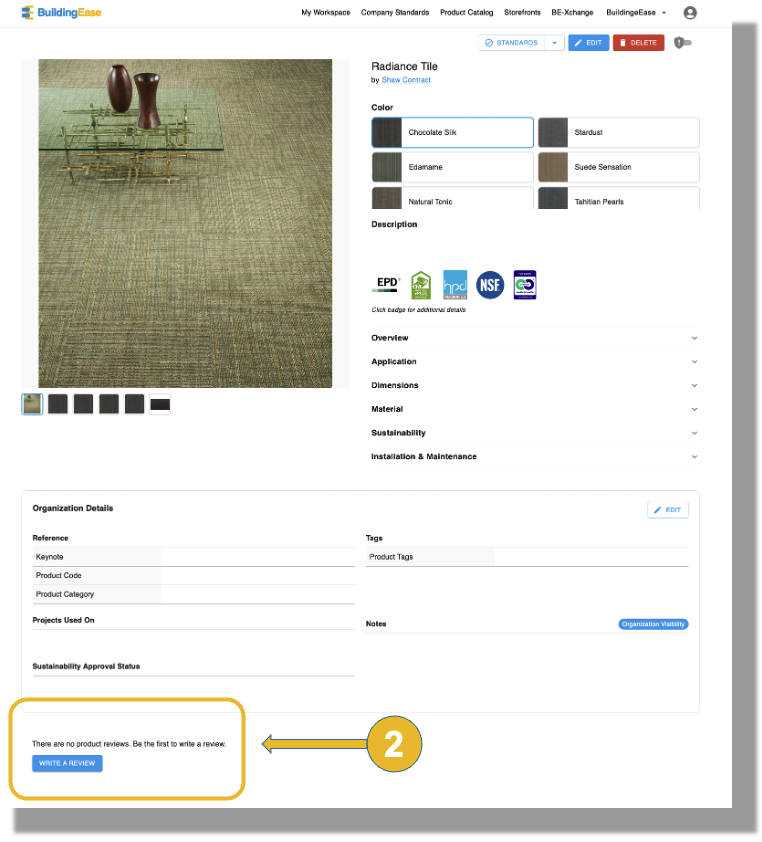
2.) Scroll to the bottom of the page and find the Ratings and Reviews.
From within a Material List (either Master or Project List)
If you are working in a Material List, and have added products to that list, you can click on any product in that list and open up the PDP (Product Detail Page). This view is a bit different from the Catalog view because you see workflow sections that include Approvals, Designations and more. Similar to above, you just scroll to the bottom to find the Ratings & Reviews.
1.) SCROLL TO BOTTOM OF PROJECT DETAILS: Ratings and Reviews show up at the bottom of the Project Details section.
2.) CLICK ON “WRITE A REVIEW”: which opens up the Rating & Review pane.

If there are already reviews you’ll see able to see them next to the Review button in the PDP (Product Detail Page).
Note that HALF stars are possible – such as a 3.5 star rating.

3.) CATALOG FILTER: These show up in the catalog in the side bar with all the other filters.

Manufacturers Respond to Reviews
Manufacturers (or their Reps) can respond to reviews from their company’s dashboard:

(4) CLICK EDIT: Manufacturers, when you navigate to the review tab in your dashboard, click “edit” to be able to respond to a review. You can find all the details for the back end dashboard in the chapter called “Create a Product”.


